
Overview
For the capstone project of my Bachelor's program, I was tasked with creating software to enhance the efficiency a growing business. I chose to build a fictional, family-owned pizza shop that was looking to expand it's operations. They were currently using manual paper forms and call based ordering, which took too long, was highly inefficient, and error prone. I decided they needed to streamline their inventory management process and automate order handling.
What I built was this full-stack MVC application that features a reactive customer flow for ordering from a managed menu, a live fulfillment dashboard for employees to view orders as they come in real-time with Server-Sent Events, and data-driven tools for management to track inventory, modify the menu, and view orders and inventory usage over specified time periods.
Technologies Used
- Backend: Java, Spring Boot, JPA/Hibernate, Thymeleaf
- Frontend: Vanilla JavaScript, CSS
- Database: MySQL, H2 (for tests)
- Infrastructure: Docker, Docker Compose, AWS
- Other: Model View Controller, Server Sent Events
Video Walkthrough
I have also created a more in-depth explanation showing the application function in real-time. It is my recommended way to view this project as the video was made with the project fresh in my mind. You can view that here.
Download, Install, & Run
Docker and Docker Compose are the only requirements beyond the actual project files.
Docker Desktop - Windows/Mac/Linux
- Download and install Docker Desktop for your operating system.
- WSL2 may be needed (Windows Subsystem for Linux) if the installer prompts to install or update, click through that prompt.
- After installation, you may need to reboot the PC and relaunch Docker Desktop.
Docker + Docker Compose - Linux
Change out the package manager for the one your distribution uses.
sudo apt update
sudo apt install -y docker.io docker-compose-v2
sudo usermod -aG docker $USER && newgrp docker
Running the Application
- Navigate to the directory where the application is located (unzip it if you have the zipped package).
- Within the /pizzashop directory you should see
Dockerfileanddocker-compose.ymlfiles among others. - For the first run, open the command prompt or terminal from this directory and run
docker compose up --build. - You may just run
docker compose upafter the first run. - This will do everything needed to build and run the application and database.
- After the log shows "database initialized", the application will be running on localhost:8080.
- The default admin login is (user: pizzashop, password: application_admin_password)
- Password can be modified within the
docker-compose.ymlfile underINITIAL_ADMIN_PASS. - To stop the application, hit
CTRL + C, rundocker compose downfrom the project folder, or click the stop icon in the Docker Desktop "containers" tab.
Interface By Role
The UI design was inspired by the look of traditional Italian restaurant menus.
All Users
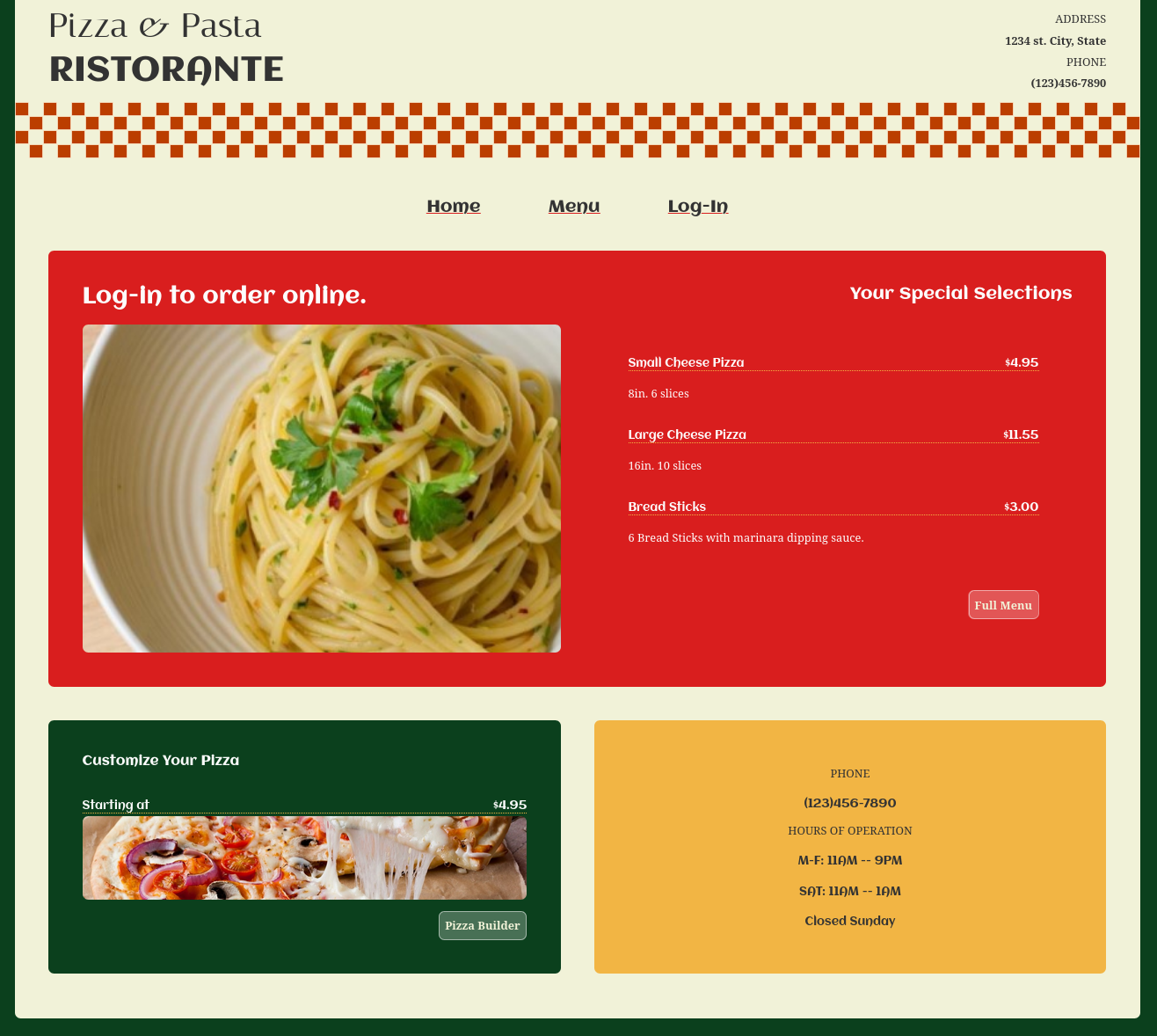
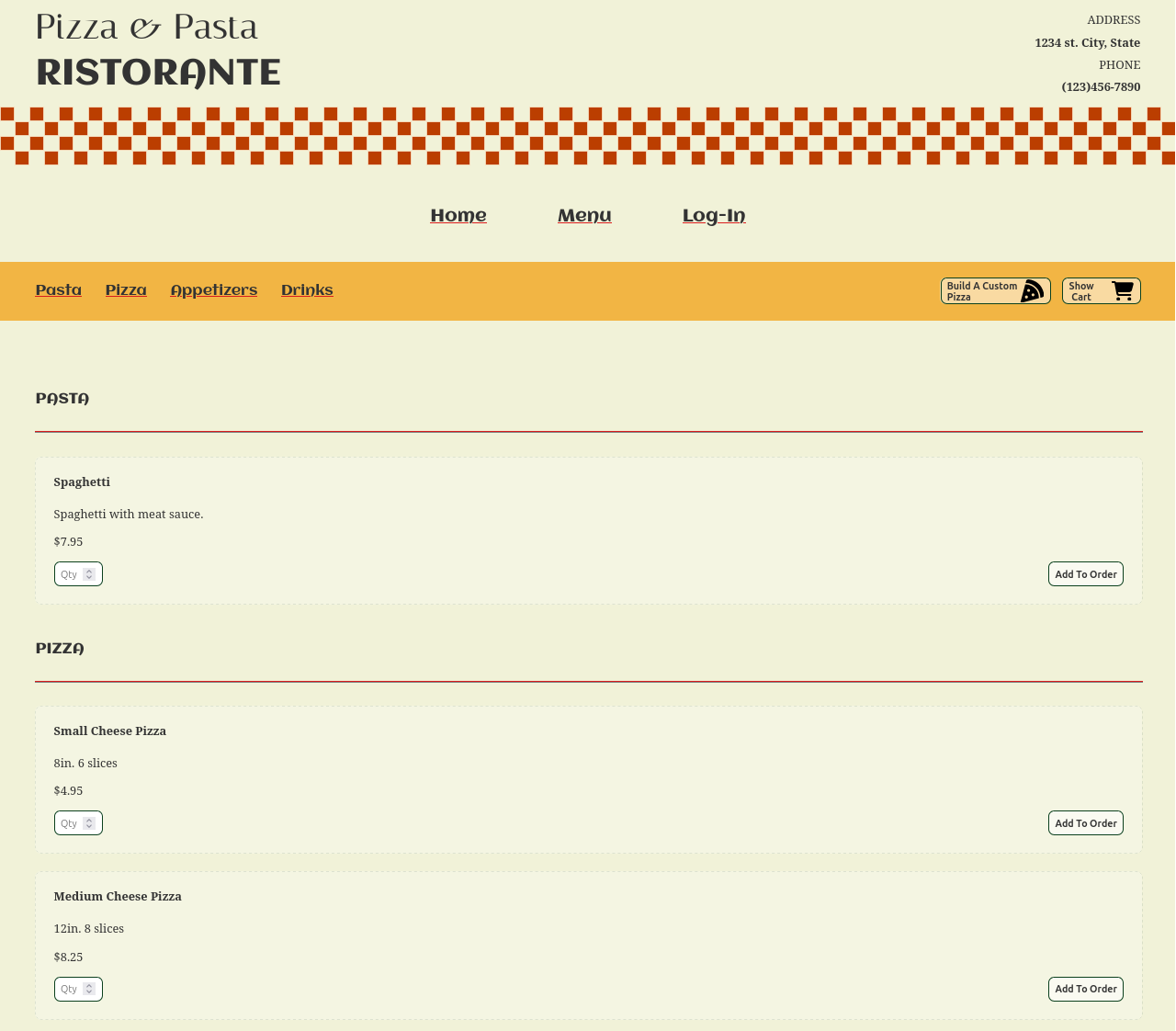
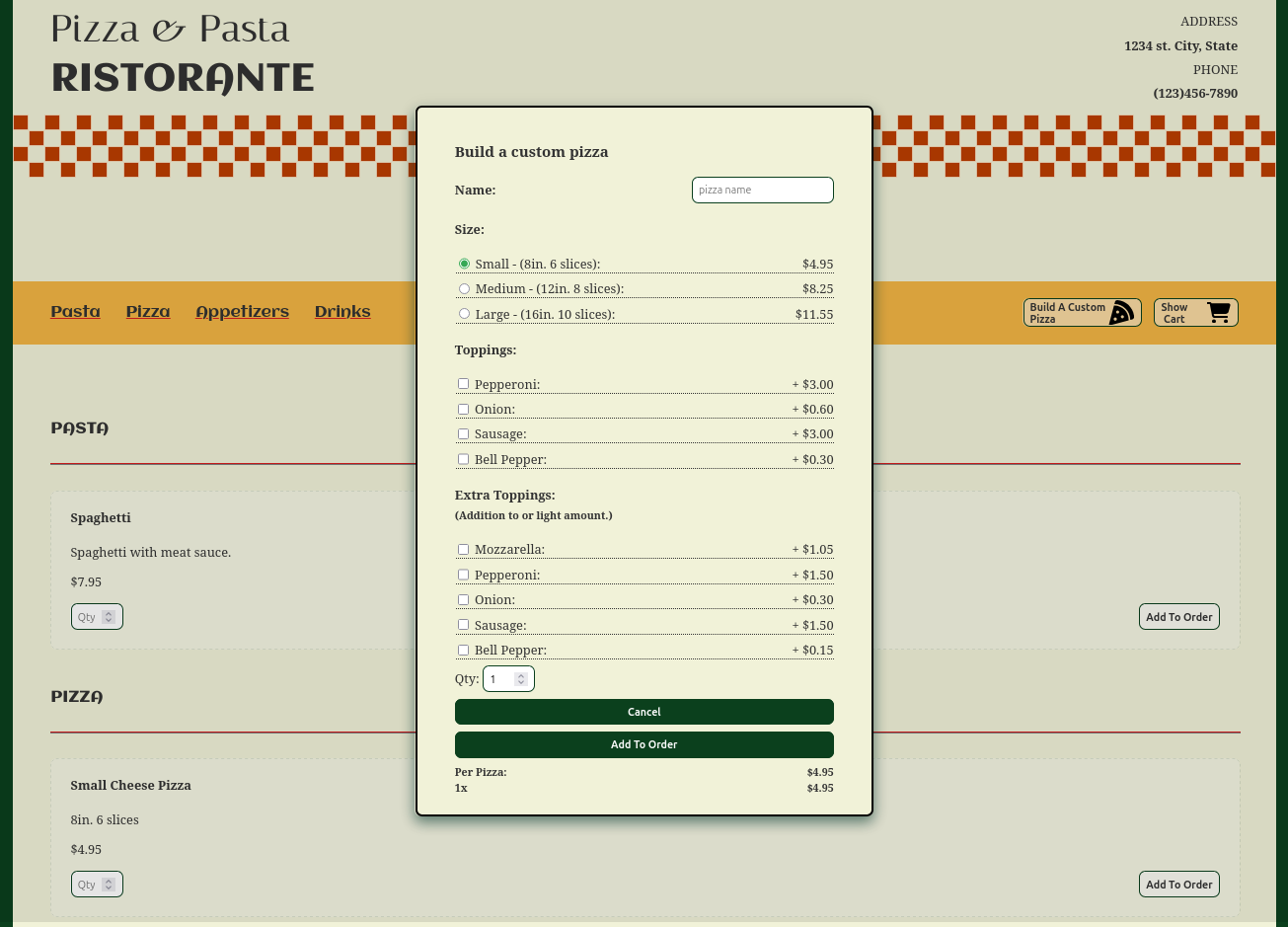
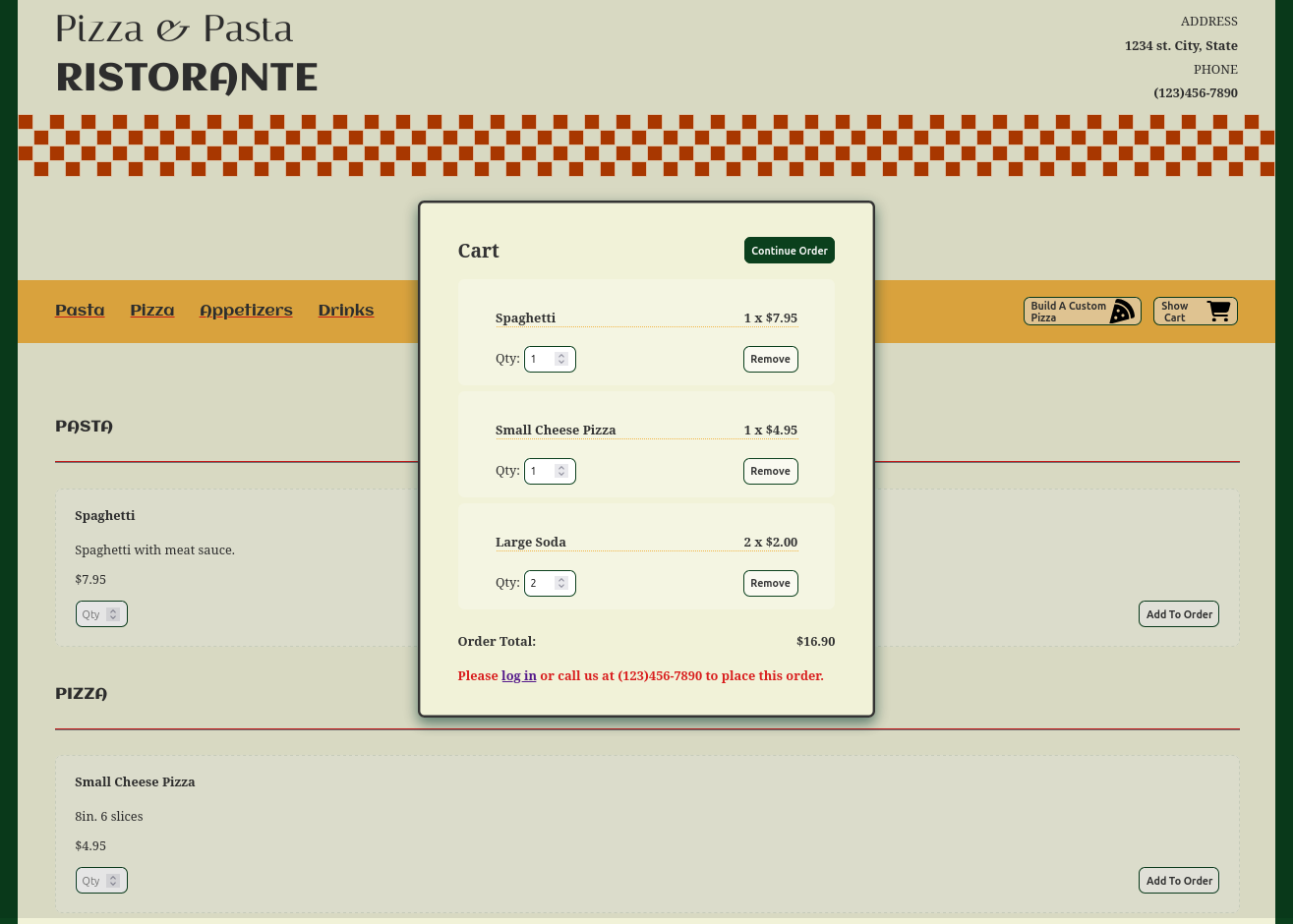
All users are able to view and use the landing page and the menu as well as add to their cart without an account or being logged in.
Landing Page
Menu Page
Custom Pizza View
Cart View
Customer
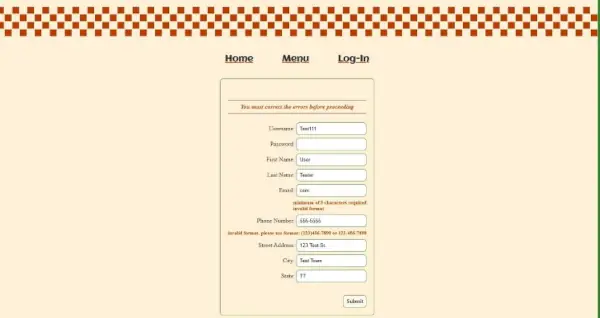
Completing an order requires the user be registered and authenticated, which is done through a validated form.
Registration Form
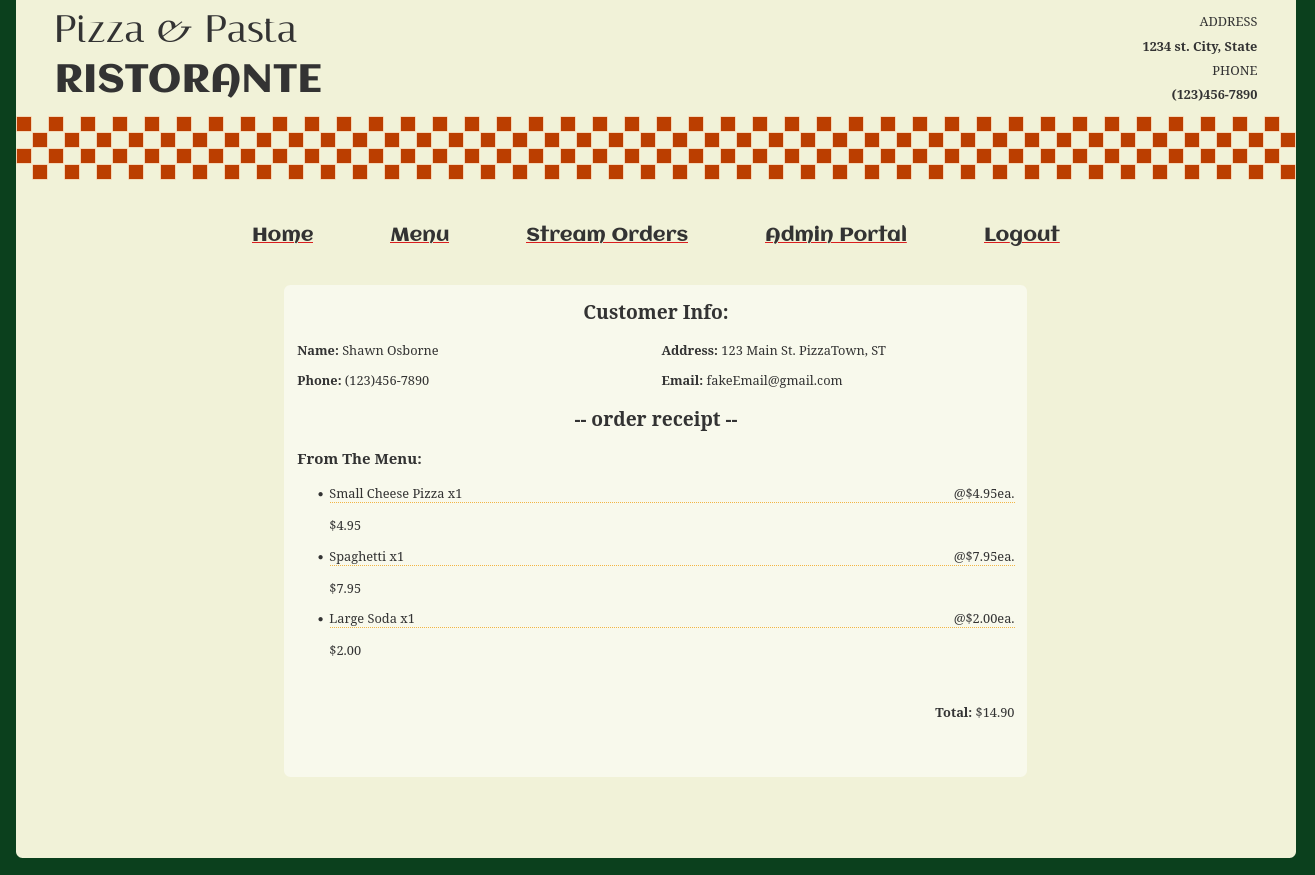
Once the user has logged in, they can submit their cart, which redirects them to the receipt page.
Receipt View
Employee
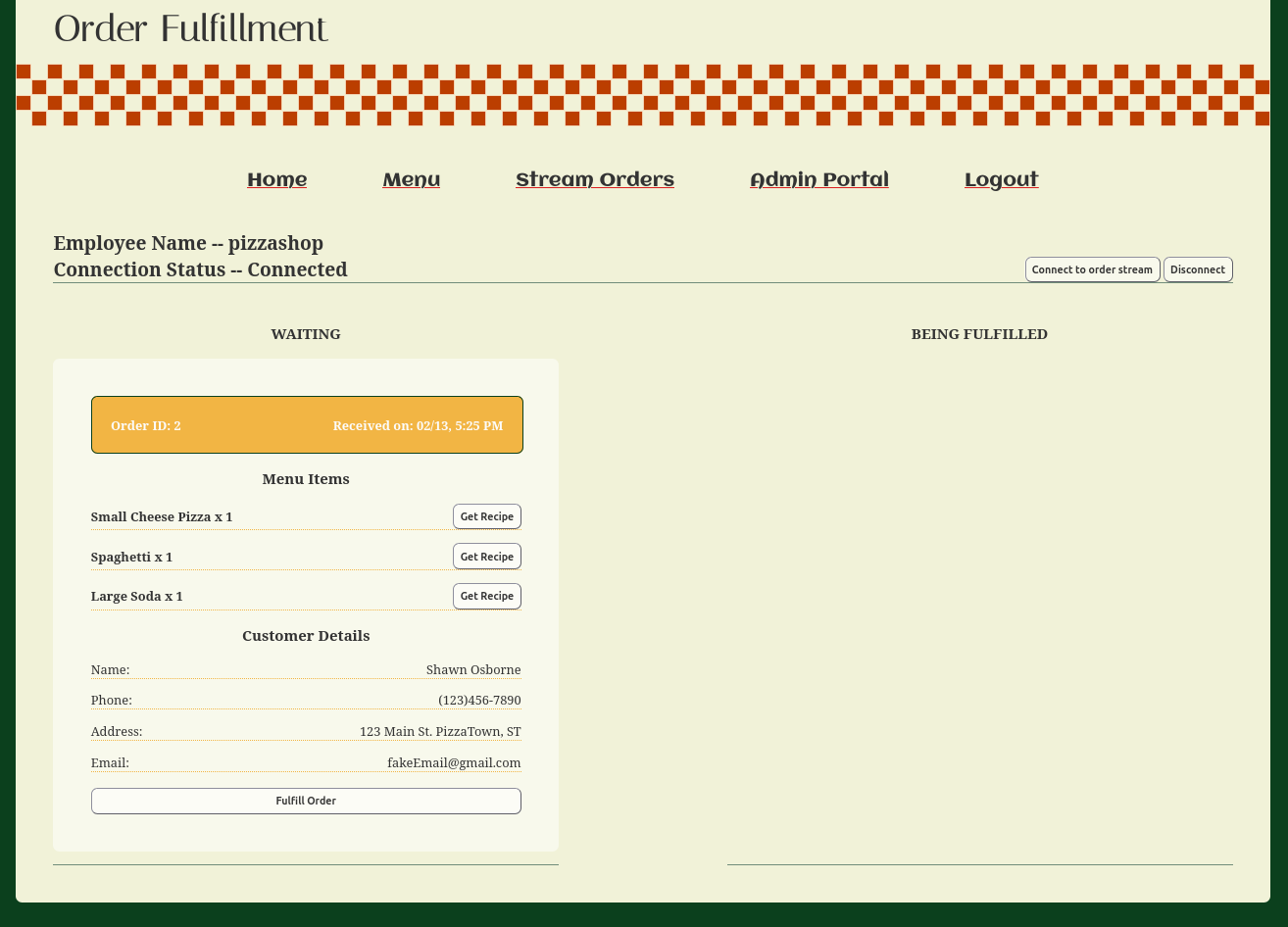
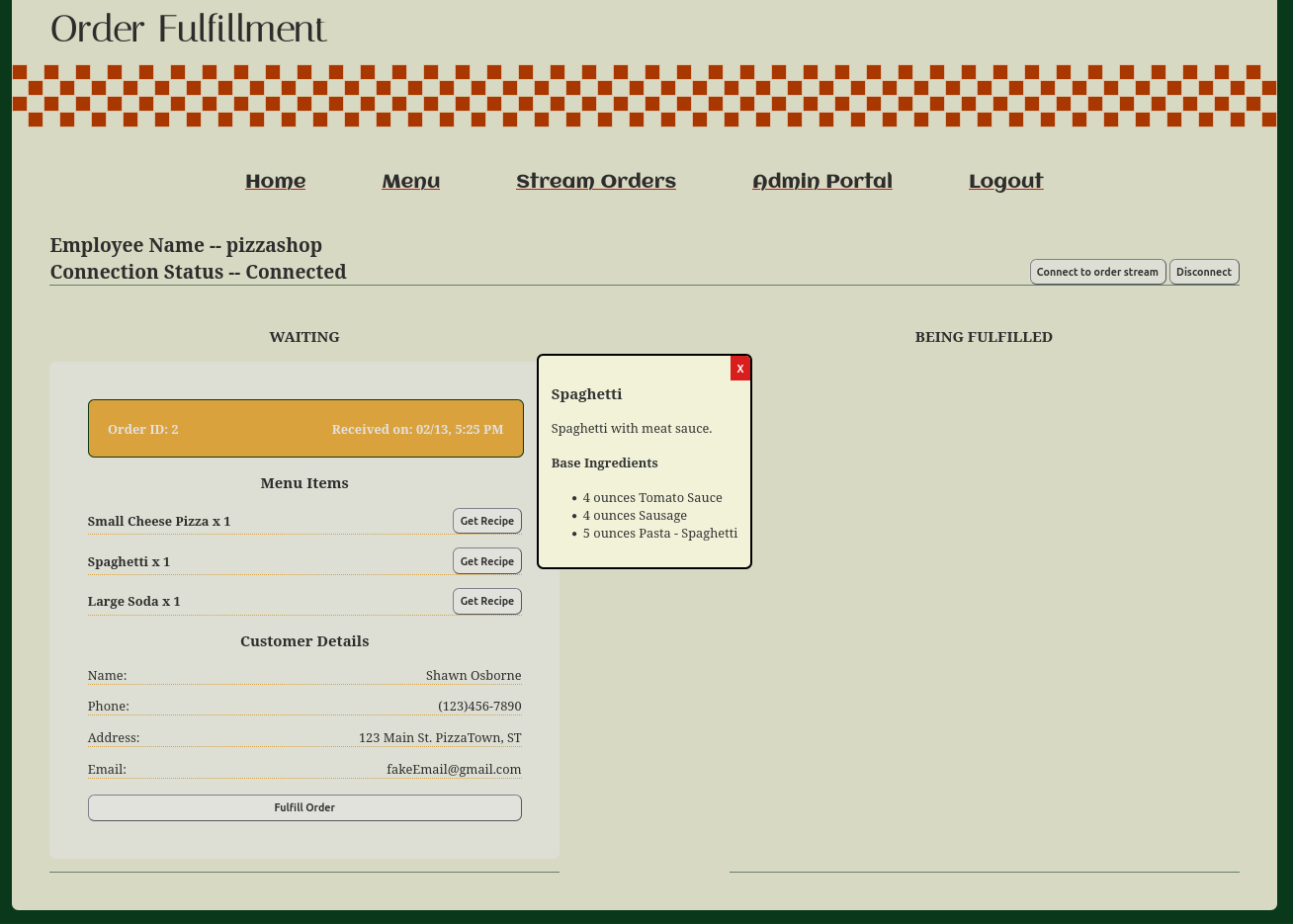
Users assigned the EMPLOYEE role are able to view and use everything a customer can with the addition of the “Stream Orders” page. This page allows the employee to connect to the SSE connection to stream incoming orders over HTTP. For each order a card is shown with items ordered, customer details, and recipes can be opened for each item.
Order Fulfillment Page
Recipe View For Order
Management
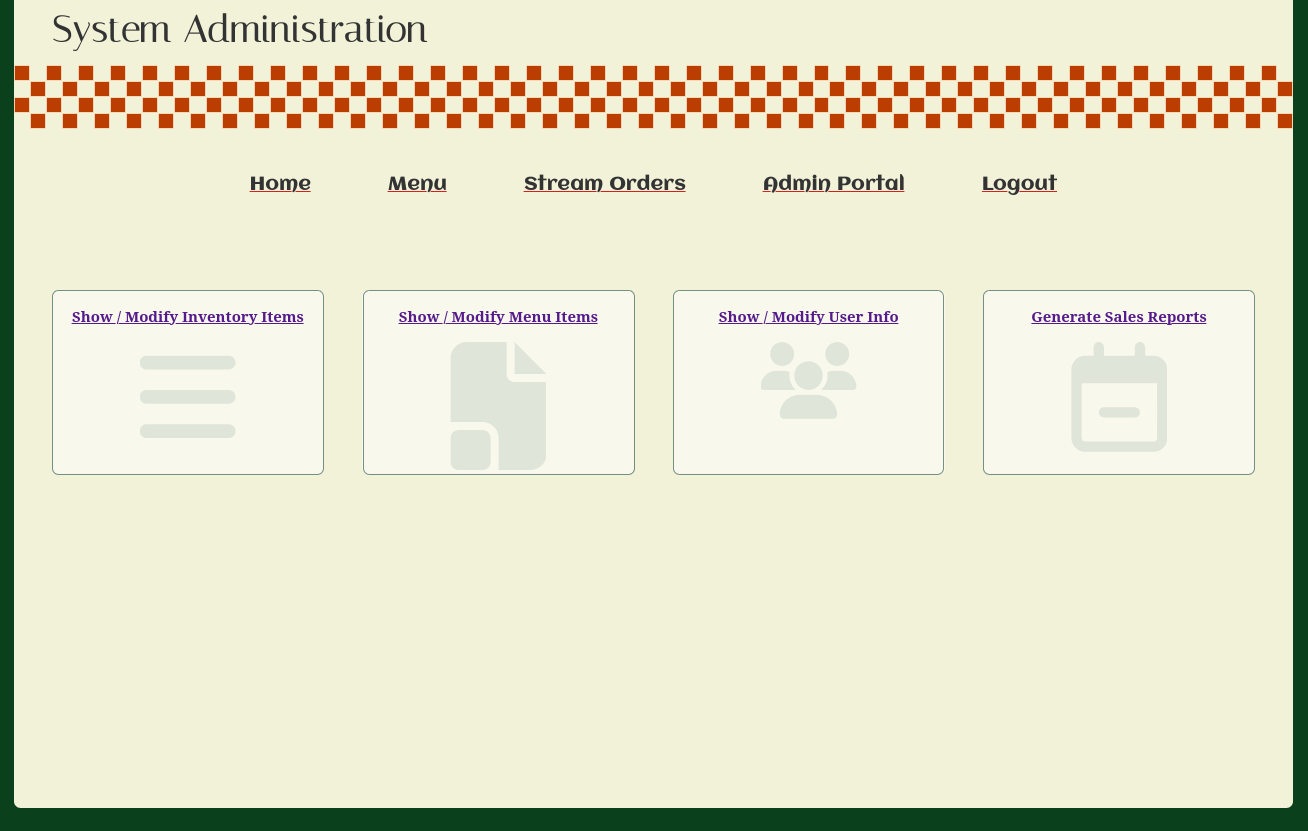
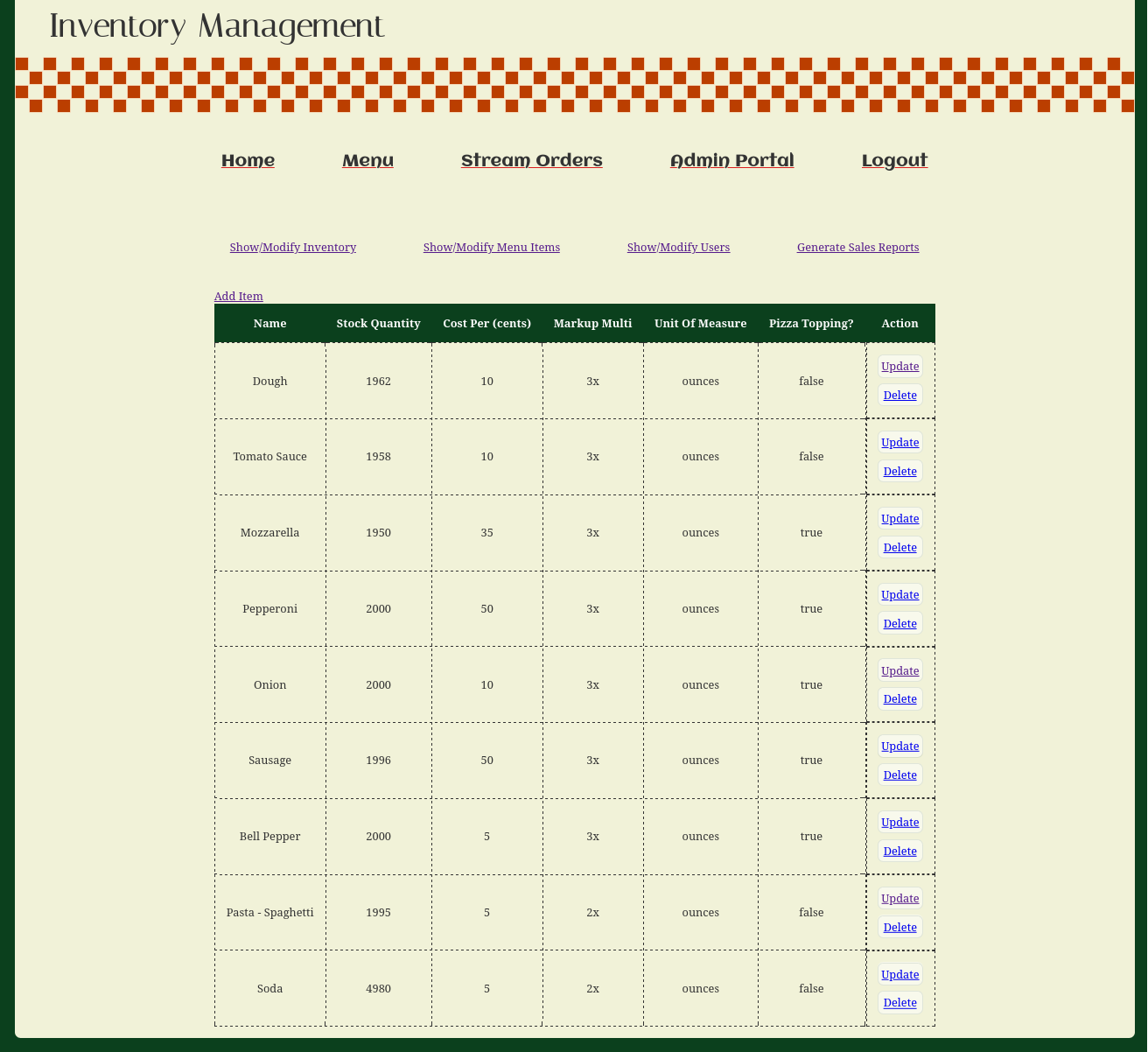
Users assigned the MANAGER role are able to see and use the entire application’s functionality. They have an additional section called "Admin Portal", allowing them to view and modify inventory items, menu prices and ingredients, and user information. They also are able to generate reports for inventory used, orders placed, and orders fulfilled over a specified time period and for specific employees. Allowing managers to make informed decisions while maintaining inventory levels and understanding menu item popularity.
Admin Portal Page
Inventory Management Page
Comments